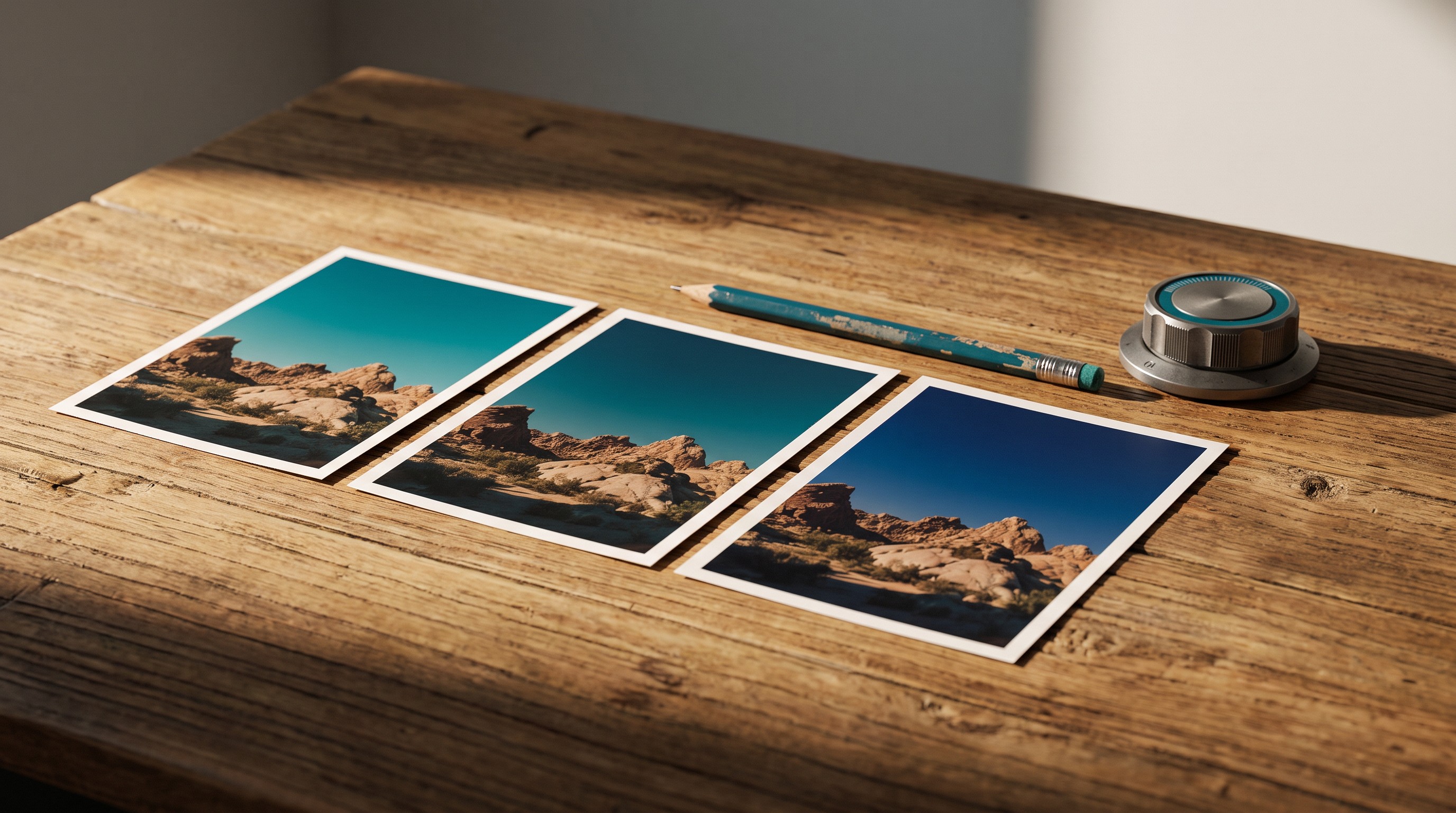
How to Fix AI Images: Change One Thing at a Time
How to fix AI images that are almost right: stop rewriting the whole prompt. Change one part at a time and learn what your tool listens to.
There are two ways people fail with AI images, and they're opposites.
The first person generates once, shrugs, and either posts whatever came out or gives up on AI entirely. The second person gets something close, decides it's off, and rewrites the whole prompt from scratch. Then does it again. And again. An hour later they have twelve images, none of them right, and no idea why any of them came out the way they did.
If you're wondering how to fix AI images that are almost right, the answer is old and boring. Change one thing at a time. It's how you adjust a shower. You turn the hot handle a little and wait. You don't spin both handles at once, because then you can't tell which one did what.
The slot machine and the rewrite: two traps that waste your afternoon
The first trap is the slot machine. You hit generate with the same prompt over and over, hoping the next pull is the one. It feels like progress. It usually isn't. If two or three batches in a row miss the same way, the prompt needs a change. More pulls won't fix it.
The second trap is the rewrite. Something's off, so you change everything. Maybe the next image is better. Maybe it's worse. Either way, you've learned nothing. You can't repeat a win you don't understand.
Underneath both traps is the same mistake: treating the first image as a verdict. It isn't. AI image tools make something different every time, even from the same prompt. One bad result doesn't mean your prompt is bad. One good result doesn't mean you're done. The first batch is the tool's opening offer.
How the loop works
Here's the loop I teach. Follow it exactly the first few times, and it becomes habit.
- Set the shape first. Square, tall, or wide, matched to where the image is going. Use your tool's size setting if it has one.
- Make 3 to 4 options from the same prompt. If your tool makes one at a time, run it three or four times.
- Compare them side by side. Ask which one is closest to what the image needs to do. Not which one is prettiest.
- Pick a winner and write down why in a few words.
- Name the single biggest problem with the winner. Just one.
- Change the one part of the prompt that controls that problem. Leave everything else alone.
- Run it again and compare. Better, worse, or the same? Write it down.
- Stop when the image does its job and only small flaws remain. Small flaws get fixed by hand afterward.
Step 5 is the heart of it. Naming the biggest problem forces you to judge like an art director instead of a slot machine player.
"One change" means one part of the prompt, not one letter. You can rewrite the whole lighting line. Just don't touch the subject, the scene, and the framing in the same round. If you need to change two things, do it in two rounds.
Which part of the prompt to change
This is where a structured prompt pays off. If your prompt is organized into parts (subject, scene, style, composition, lighting and color, and brand cues), then every problem has an address:
| If the problem is... | Change this first |
|---|---|
| Wrong thing in the picture, or the wrong number of things | Subject |
| Wrong place, or the background tells the wrong story | Scene |
| Cartoon when you wanted a photo, or the reverse | Style |
| Subject too small, too big, or no room for text | Composition |
| Wrong mood, too dark, too cold, or off-brand colors | Lighting & Color |
| Looks generic, or shows something you never want | Brand Cues |
What it looks like in practice: four rounds
A dog groomer runs her bath-and-trim prompt and gets four options. One has a great happy dog but a dark, gray background.
She doesn't rewrite the prompt. She changes only the lighting line, to "bright, airy daylight."
Round two fixes the background. But now the dog looks stiff. She changes only the subject, adding "mid-wag, playful."
Round three is nearly right. Round four, she changes only the composition to move the dog to the left, so there's room for her headline on the right.
Four rounds. One great image. But look at what else she walked away with. She now knows three things about her tool: lighting words change the background a lot, action words loosen up stiff animals, and composition words move things around reliably. That knowledge makes her next image faster, and the one after that.
That's the real return on changing one thing at a time. You aren't just fixing this image. You're learning what your tool listens to.
Two shortcuts: a reference image and a notes column
A reference image is a picture you upload so the tool can match its look, layout, or subject. One good reference often gets you closer in a single round than ten lines of description. Say a baker has a photo of her own counter on a sunny morning, with real wood, real light, a little flour. She uploads it and adds, "match the lighting and colors of the reference." Her next batch looks like it came from her shop.
Two rules. Tell the tool what to match ("use the reference for lighting and color only"), or it may copy too much. And only upload images you have the right to use: your own photos, or ones you have clear permission for. Not another business's photo you liked. Check your tool's current terms on what happens to uploads, too.
Notes sound like homework. They aren't optional. After six versions you won't remember which prompt made the good one, and you'll want it next month. A three-column note works: version, what you changed, what happened. That's it.
When to stop iterating and start over
Changing one thing at a time isn't a vow to save every image. Some are not worth it.
If the main subject is broken, start over. A person with a warped face, a hand with six fingers, a dog with five legs: those are usually not worth fixing. Regenerate. Small stuff like one odd shadow or a blurry background object can be fixed by hand after.
If you've gone several rounds and you're not getting closer, the problem usually isn't the prompt. It's the decision behind it. Maybe you never decided exactly what the image is for. Maybe you're asking a generator to do something it's bad at, like spelling a headline or showing your exact product. In that case, step back. Use a real photo, or a different kind of tool.
And don't confuse "close enough to me" with "done." When you think you're finished, check it at full size. Zoom in on hands, paws, text, and edges. AI images are great at looking right at a glance. That's exactly why you look twice.
Key takeaways
- The first AI image is the tool's opening offer, not the answer.
- Hitting generate with the same prompt again and again rarely fixes a repeated miss.
- Name the single biggest problem, change only the prompt part that controls it, and compare.
- Every problem has an address: subject, scene, style, composition, lighting and color, or brand cues.
- Start over when the main subject is broken; fix small flaws by hand.
Frequently asked questions
How do you fix an AI image that is almost right?
Name the single biggest problem with the image, then change only the part of your prompt that controls it, such as the lighting line or the subject description, and run it again. Compare the new result to the old one and write down what changed. Repeating this one change at a time shows what your tool responds to and avoids starting from scratch.
Should I rewrite my whole prompt if the AI image is wrong?
Usually not. Rewriting the whole prompt changes everything at once, so even if the next image is better, you won't know why. It's more effective to keep the prompt and change one part per round. Start over only when the main subject is badly broken, or when several rounds in a row aren't getting closer to what you need.
What is a reference image in AI image tools?
A reference image is a picture you upload so the AI tool can match its look, layout, or subject. For example, a business owner might upload a photo of their own shop's lighting and colors so new images feel consistent. It helps to say what to match, such as lighting and color only, and to upload only images you own or have permission to use.
Why does generating the same prompt again not fix my AI image?
AI image tools produce a different result each time, but if a prompt is missing information, every result will miss in the same way. Clicking generate repeatedly is like pulling a slot machine lever. If two or three batches fail the same way, the prompt needs a specific change, such as clearer lighting, framing, or subject details.
Where this goes next
Generate and Iterate is one step of the Prompt-to-Polish Method in Module 2 of How to Use AI to Create Images for Your Business, along with how to check and finish an image before it goes out. If you want the whole loop, that's what the class teaches.
See the class